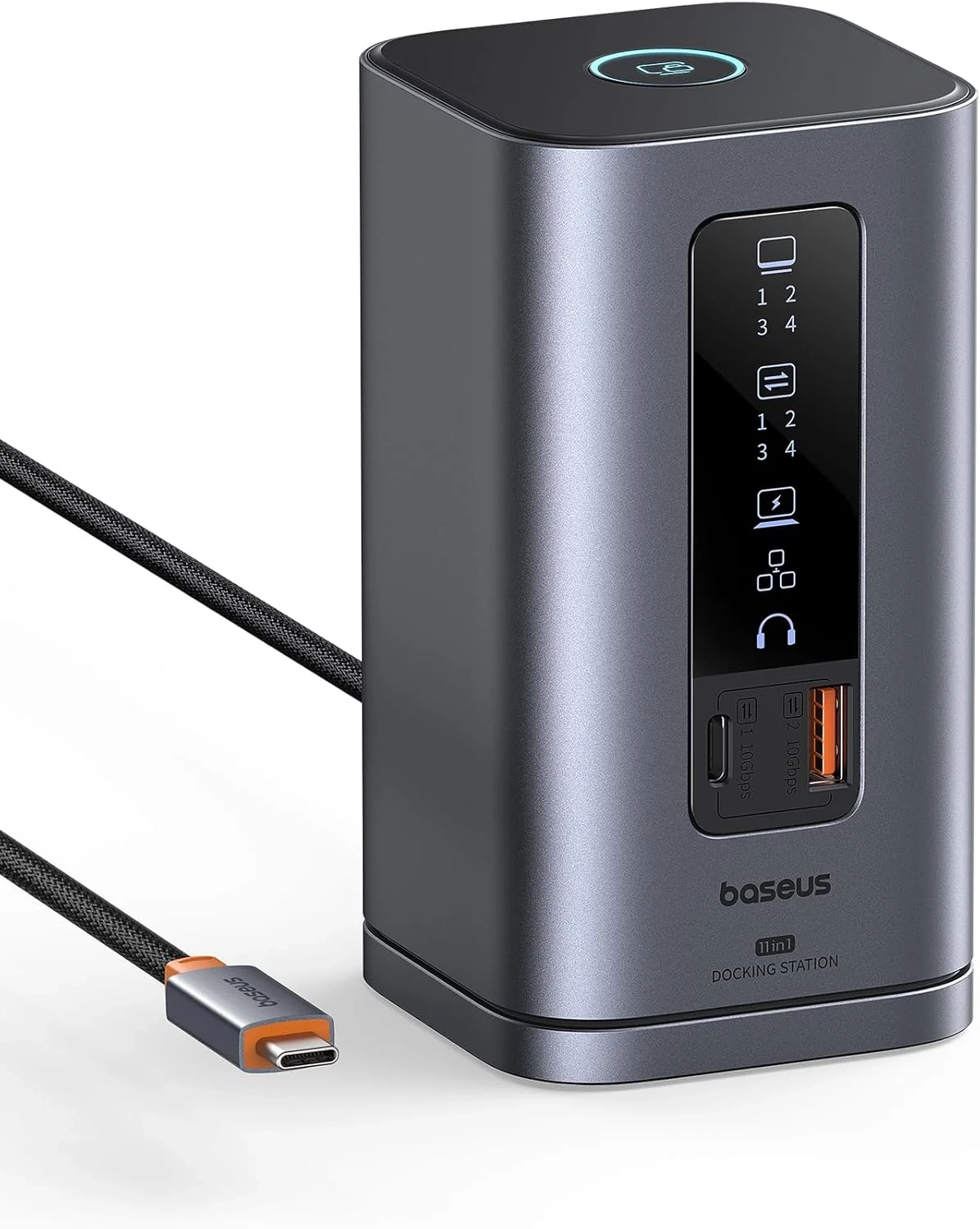
Baseus Spacemate Docking Station: Triple Display 4K Setup
Introduction
In today’s mobile-first world, a cluttered desk with a tangle of cables can seriously hinder productivity. For professionals, students, and remote workers, a laptop docking station is the ultimate solution to transform a portable laptop into a powerful desktop workstation. This single device can streamline your entire setup, connecting multiple monitors, peripherals, and networks through one simple cable.
The right dock eliminates the frustration of constantly plugging and unplugging devices. It turns your laptop into a command center, boosting efficiency and creating a cleaner, more professional workspace. Whether you’re managing complex spreadsheets, editing video, or simply extending your screen real estate, a high-quality docking station is a game-changer.
Laptop Docking Station Problems and Solutions
Many users face common hurdles when setting up an efficient workspace. A frequent issue is the lack of ports on modern, slim laptops, forcing you to choose between connecting a monitor, a mouse, or a charger. This leads to a frustrating game of peripheral musical chairs.
Another major problem is achieving a stable, multi-monitor setup without sacrificing resolution or dealing with flickering screens. Users often struggle with slow data transfer speeds when moving large files or backing up data. Furthermore, finding a dock that delivers enough power to charge your laptop while everything else is connected can be a challenge, leaving you with a dead battery mid-task.
Step-by-Step Solutions
To solve these problems effectively, follow this straightforward approach:
- Assess Your Needs: List every device you need to connect daily—monitors (and their required ports: HDMI, DisplayPort), keyboard, mouse, external drives, Ethernet, and headphones. This determines the ports you need.
- Check Your Laptop’s Specs: Verify your laptop’s USB-C port supports video, data, and power delivery (look for a Thunderbolt or USB4 logo, or consult your manual). This ensures compatibility with advanced docking features.
- Prioritize Power: Choose a dock with a Power Delivery (PD) input that meets or exceeds your laptop’s charging requirements. A 100W PD port is ideal for most high-performance laptops.
- Connect for Success: Plug the dock’s main cable into your laptop, connect the power adapter to the dock, and then attach your monitors and peripherals. Always connect power first for the most stable operation.
Alternatives and Comparisons
While a full-featured USB C docking station is the most comprehensive solution, there are simpler alternatives. Basic USB-C hubs offer a few extra ports like USB-A and HDMI at a lower cost but often lack power delivery and multi-monitor support.
For users deeply invested in the Apple ecosystem or those requiring the absolute highest data and video bandwidth, Thunderbolt docks are the premium alternative. They support dual 4K displays at higher refresh rates and offer blazing-fast data transfer, but come at a significantly higher price point than standard USB-C docks.
Practical Use Cases
Imagine a graphic designer who uses a docking station to connect two high-resolution color-accurate monitors, a drawing tablet, and an external SSD for project files—all with one cable. This creates a seamless, professional-grade studio.
A financial analyst can benefit by extending their laptop display to three monitors. They can keep live data on one screen, run models on another, and have communications open on the third, dramatically improving analysis and decision-making speed. For more insights on optimizing your tech setup, explore our Technology Blog.
In a home office, a dock simplifies the transition between work and personal time. You can connect to a dedicated monitor, a full-sized keyboard, and a wired internet connection for stability, then disconnect instantly to take your laptop to the living room. This is a perfect example of a tool in the Computer and Accessories category that enhances daily life.
FAQs
What is a laptop docking station?
A laptop docking station is a hardware device that expands a laptop’s connectivity. It plugs into a single port (typically USB-C or Thunderbolt) and provides numerous additional ports for monitors, USB devices, Ethernet, and audio, often while charging the laptop itself.
How does a laptop docking station compare to a simple USB hub?
A docking station is a more powerful evolution of a USB hub. While hubs mainly add USB ports, a full dock adds video outputs (HDMI, DisplayPort), network ports (Ethernet), audio jacks, and high-wattage power delivery to charge your laptop, effectively turning it into a desktop replacement.
Is a laptop docking station worth it for remote workers?
Absolutely. For remote workers, a docking station creates a consistent, efficient, and professional workspace. It allows for a proper multi-monitor setup, fast wired internet, and easy connection to all peripherals with a single plug, making the daily setup process instantaneous and frustration-free.
Conclusion
Investing in a capable laptop docking station is one of the most effective ways to enhance your productivity and workspace ergonomics. It solves the common problems of limited ports, slow data transfer, and cumbersome cable management. By carefully selecting a dock that matches your laptop’s capabilities and your workflow needs, you can unlock a seamless, powerful, and organized computing experience.